

1. Intro
The Postgres foreign data wrapper (postgres_fdw) extension can help retrieve or access
data on other PostgreSQL servers.
In this tutorial, we’ll set up two Postgres servers, database_1 and
database_2. database_1 will have an employees table that will store
details of some random employees. database_2 will have a managers table that will
contain the employee ID and years of experience of each manager. In a real-world scenario you’d
probably have the employees and managers table in one database, this setup is for the sake of
illustrating how the foreign-data wrapper works. Below is a diagram of the 2 Postgres servers
without the fdw connection.
+----------------+                  +----------------+
|                |                  |                |
|  Postgres      |                  |  Postgres      |
|  Server 1      |                  |  Server 2      |
|                |                  |                |
|  database_1    |                  |  database_2    |
|                |                  |                |
|  +-----------+ |                  |  +-----------+ |
|  | employees | |                  |  | managers  | |
|  +-----------+ |                  |  +-----------+ |
|                |                  |                |
+----------------+                  +----------------+
          |                                  |
          |                                  |
          |                                  |
          |                                  |
          |                                  |
          |                                  |
+-------------------+               +-------------------------+
|   employees       |               |     managers            |
+-------------------+               +-------------------------+
| employee_id       |               | manager_id              |
| first_name        |               | employee_id             |
| last_name         |               | experience_years        |
| email             |               +-------------------------+
| department        |
+-------------------+
To demonstrate the use of the postgres_fdw extension, we will create a foreign data
wrapper in database_1 that connects to database_2 and accesses the managers
table. Below is a diagram of the 2 Postgres servers with the fdw connection.
+----------------+                  +----------------+
|                |                  |                |
|  Postgres      |                  |  Postgres      |
|  Server 1      |                  |  Server 2      |
|                |                  |                |
|  database_1    |                  |  database_2    |
|                |                  |                |
|  +-----------+ |                  |  +-----------+ |
|  | employees | |                  |  | managers  | |
|  +-----------+ |                  |  +-----------+ |
|  | managers  | |  ---------------->  |                |
|  | (foreign  | |  FDW connection  |                |
|  |  table)   | |                  |                |
+----------------+                  +----------------+
          |                                  |
          |                                  |
          |                                  |
          |                                  |
          |                                  |
          |                                  |
+-------------------+               +-------------------------+
|   employees       |               |     managers            |
+-------------------+               +-------------------------+
| employee_id       |               | manager_id              |
| first_name        |               | employee_id             |
| last_name         |               | experience_years        |
| email             |               +-------------------------+
| department        |
+-------------------+
2. Project source code
You can download/clone the source code for this tutorial here:
https://github.com/JoeyAlpha5/postgres_fdw_extension
3. Running Postgres & PgAdmin using Docker
Ensure Docker is installed on your machine. You can download Docker from https://docs.docker.com/get-docker/
Once Docker is installed, you can start the two PostgreSQL servers, database_1 and
database_2, along with pgAdmin by running the following command:
docker-compose up -dThe docker-compose.yml file in the project defines the configuration for these two
servers. For detailed instructions on setting up the docker-compose.yml file, you can
refer to my article here:
4. Registering 2 database servers in PgAdmin
4.1 Registering database_1 and database_2
After running the command in the previous step, you should have PgAdmin running on http://localhost:8001/. Log in to PgAdmin with the credentials below:
username: admin@pgadmin.com
password: password
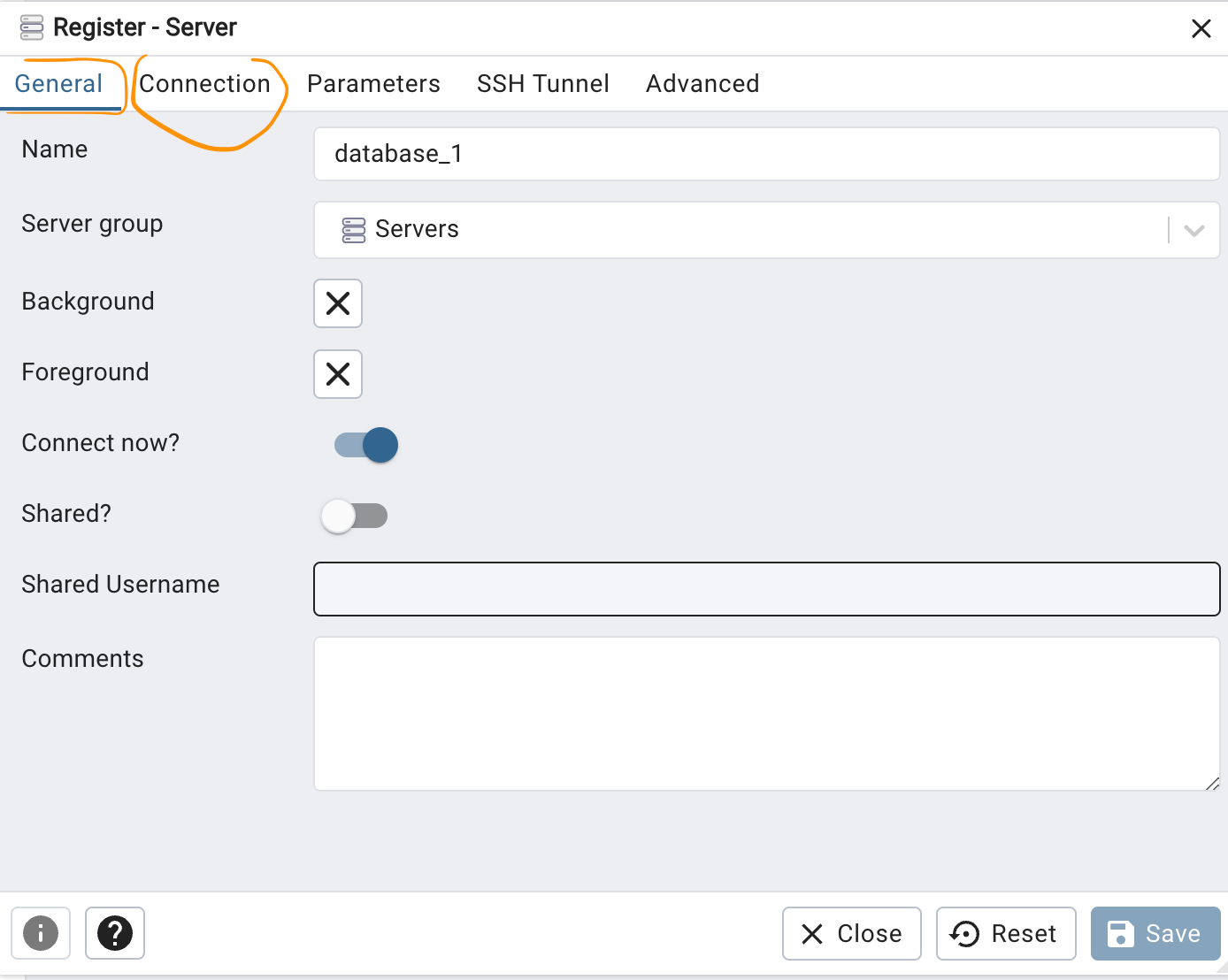
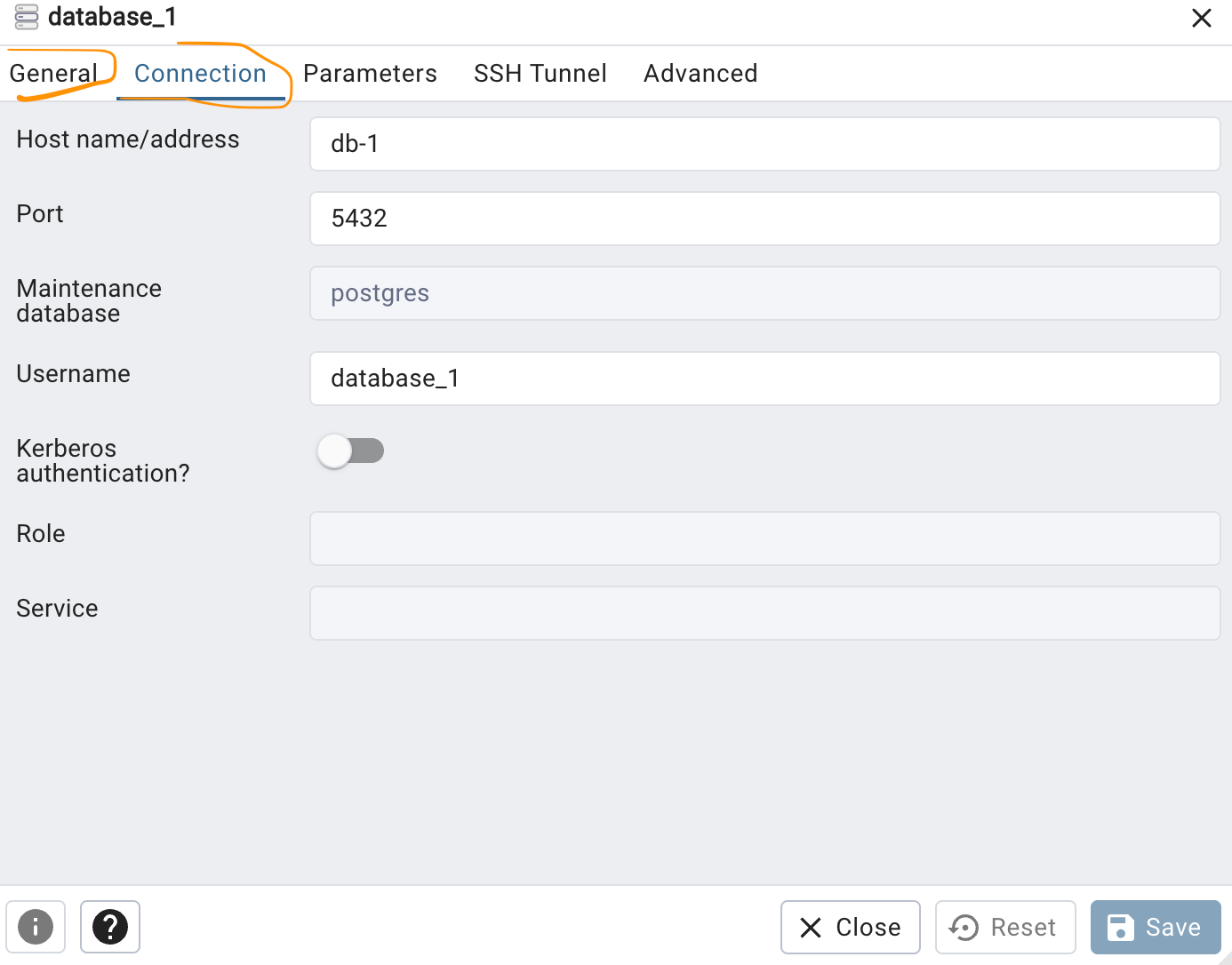
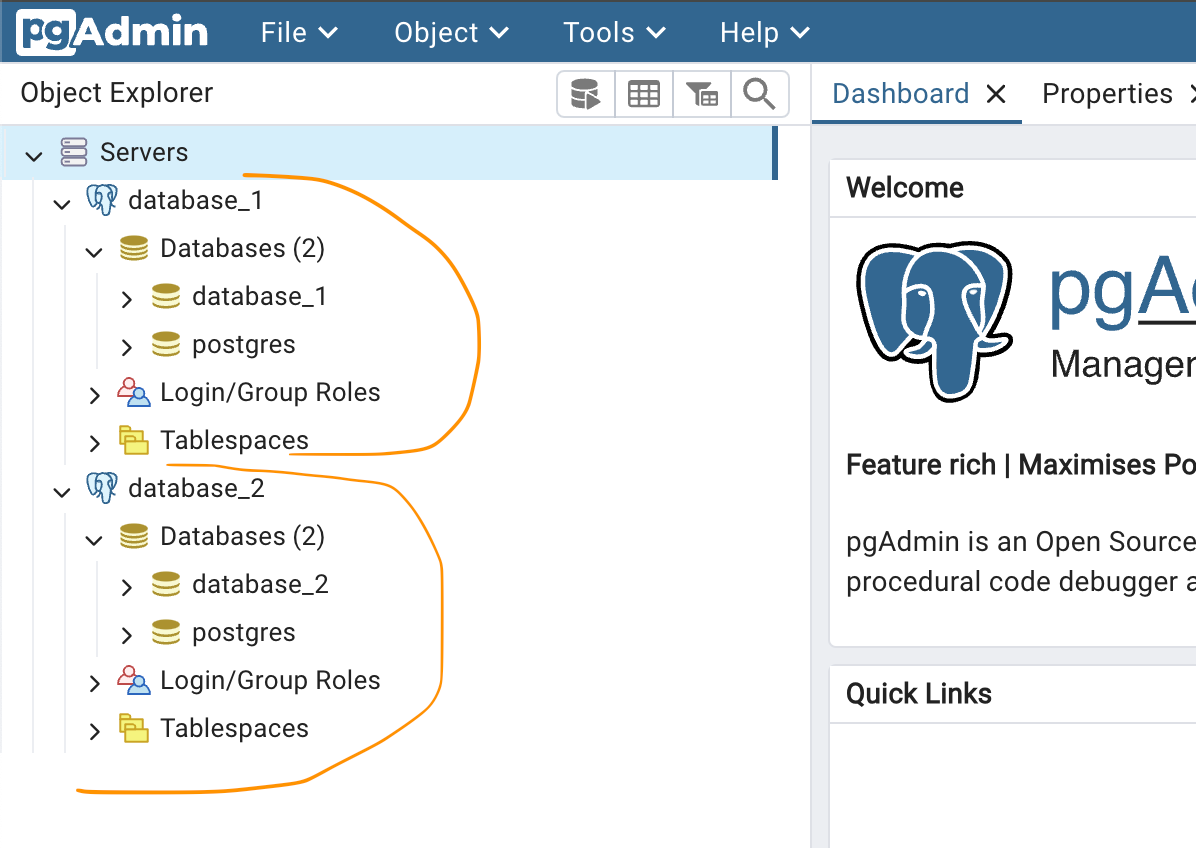
Once you’ve logged in to pgAdmin, register the two servers using the connection details below:
database_1:
  - Hostname: db-1
  - Username: database_1
  - Password: database_1
database_2:
- Hostname: db-2
- Username: database_2
- Password: database_2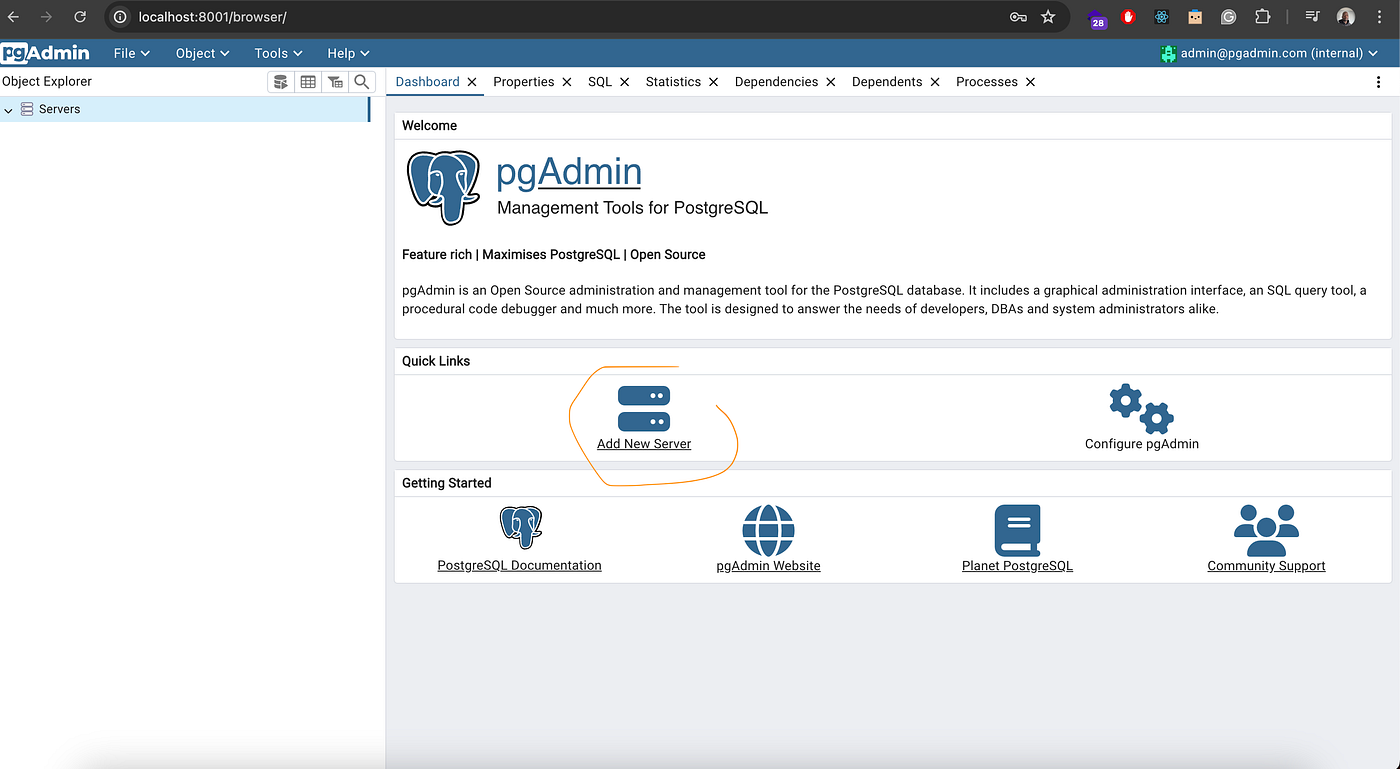
4.2 Creating the employees and managers table
Run the CREATE script below in database_1 to create the employees table.
CREATE TABLE IF NOT EXISTS public.employees
(
    employee_id integer NOT NULL,
    first_name character varying(50),
    last_name character varying(50),
    email character varying(100),
    department character varying(50),
    CONSTRAINT employees_pkey PRIMARY KEY (employee_id)
)
Next, run the managers CREATE script in database_2 to create the managers table.
CREATE TABLE IF NOT EXISTS public.managers
(
    manager_id integer NOT NULL,
    employee_id integer,
    experience_years integer,
    CONSTRAINT managers_pkey PRIMARY KEY (manager_id)
)
Now insert some data into the employees and managers table by running the scripts below.
Insert data into the employees table in database_1:
INSERT INTO public.employees (employee_id, first_name, last_name, email, department) VALUES
(1, 'John', 'Doe', 'john.doe@example.com', 'Sales'),
(2, 'Jane', 'Smith', 'jane.smith@example.com', 'HR'),
(3, 'Michael', 'Johnson', 'michael.johnson@example.com', 'IT'),
(4, 'Patricia', 'Brown', 'patricia.brown@example.com', 'Finance'),
(5, 'Robert', 'Jones', 'robert.jones@example.com', 'Marketing'),
(6, 'Linda', 'Miller', 'linda.miller@example.com', 'Sales'),
(7, 'William', 'Davis', 'william.davis@example.com', 'HR'),
(8, 'Elizabeth', 'Garcia', 'elizabeth.garcia@example.com', 'IT'),
(9, 'James', 'Martinez', 'james.martinez@example.com', 'Finance'),
(10, 'Mary', 'Hernandez', 'mary.hernandez@example.com', 'Marketing');
Insert data into the managers table in database_2:
INSERT INTO public.managers (manager_id, employee_id, experience_years) VALUES
(1, 1, 5),
(2, 2, 7),
(3, 3, 10),
(4, 4, 8);
5. Postgres Foreign Data Wrapper (postgres_fdw)
5.1 Installing the postgres_fdw extension
To create the FDW connection from database_1 to database_2 start by
installing the extension in the database_1 server where we have the employees table by
running the command below in PgAdmin.
CREATE EXTENSION postgres_fdw;Confirm that the postgres_fdw extension has been installed by running:
SELECT * FROM pg_extension WHERE extname = 'postgres_fdw';5.2 Creating a foreign server
The next step is to create the foreign server connection to database_2 using the
server’s host name, db name and port.
CREATE SERVER database_2
FOREIGN DATA WRAPPER postgres_fdw
OPTIONS (host 'db-2', dbname 'database_2', port '5432');
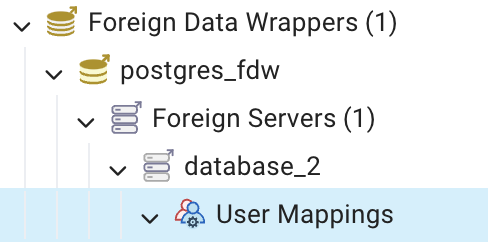
After running the above script, database_2 should appear under foreign servers in the
foreign data wrappers object.
5.3 Creating a user mapping
Next, we’ll need to map our current user to the foreign database user to grant the user access to the
foreign database. In this case, we’ll map the database_1 user to the
database_2 user. In the options, pass the database_2 credentials.
CREATE USER MAPPING FOR database_1
SERVER database_2
OPTIONS (user 'database_2', password 'database_2');
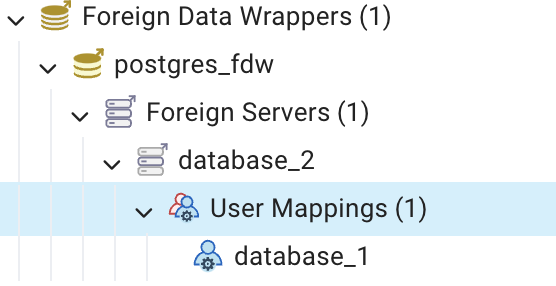
After running that command and hitting refresh on the user mappings the user should appear.
5.4 Creating a foreign table
Lastly, we need to create the foreign managers table. To do that we need the table fields and field types of the table we want to import.
CREATE FOREIGN TABLE external_managers_table
(
    manager_id integer,
    employee_id integer,
    experience_years integer
)
SERVER database_2
OPTIONS (table_name 'managers')- After the create command specify the server name of the foreign server we created earlier.
- In the options we need to pass the table name from the external database that we want to import.
In this case, it’s the
managerstable.
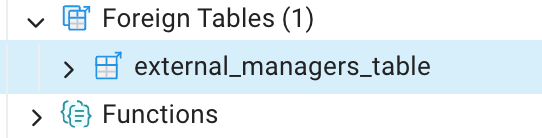
After running the script above, you should see a table named external_managers_table
under foreign tables that references the managers table in database_2
5.5 Running a cross-database query
Now, you can run a select query on the foreign table that’s been created to retrieve manager records.
SELECT * FROM external_managers_table;When a new record gets written to the managers table it’ll also reflect in the foreign
table, you can also join the two tables in a query on the employee id field.