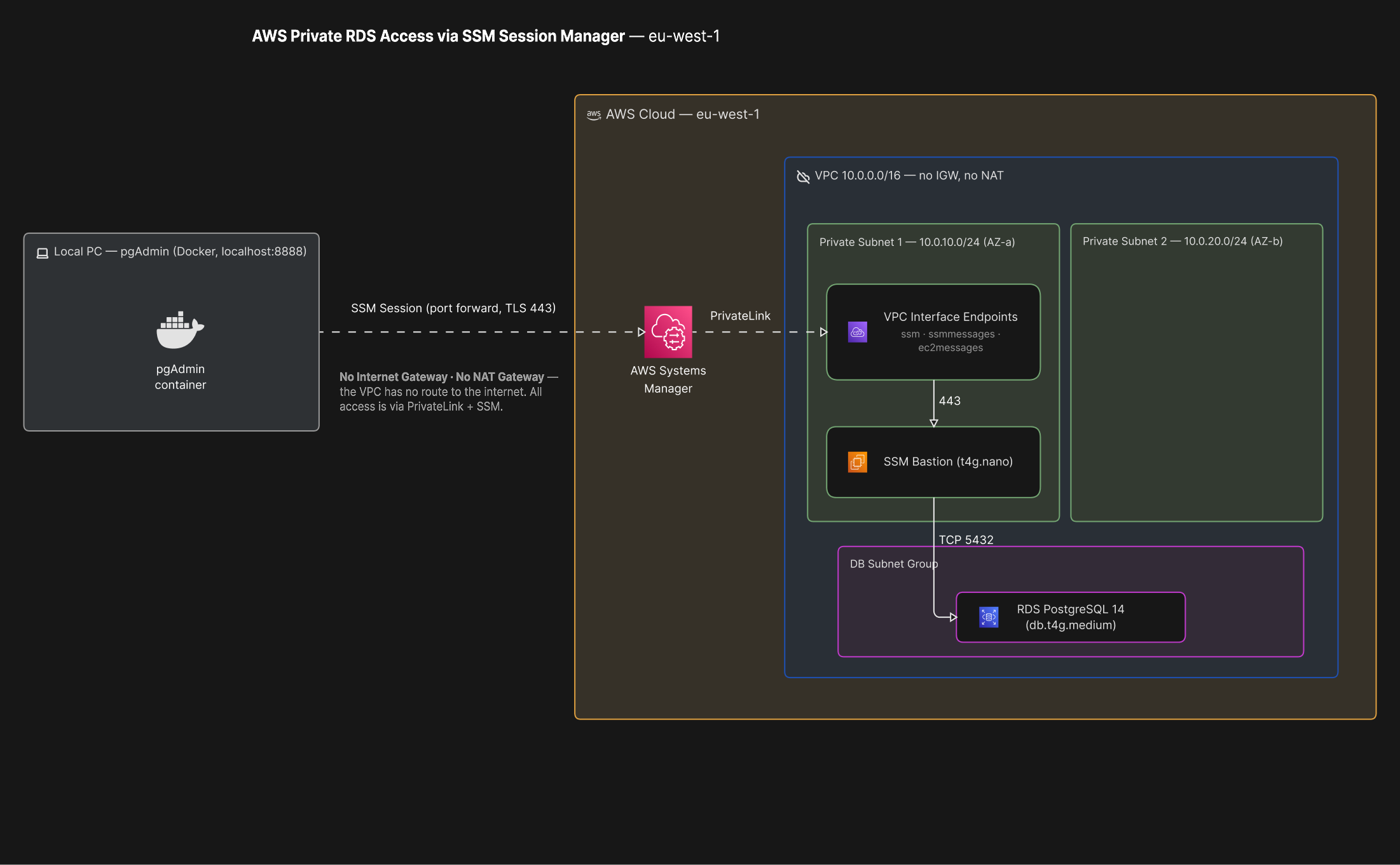
This article walks through a Terraform configuration for a PostgreSQL RDS instance with no public IP, no open ports, and no SSH keys. The database is reached from pgAdmin on a local machine through an AWS Systems Manager session.
The database sits in a private subnet with no route to the internet — the VPC has no Internet Gateway and no NAT Gateway. A small EC2 bastion sits alongside the database and reaches Systems Manager through VPC interface endpoints, keeping all traffic on the AWS network. The local machine talks to the Systems Manager API, and AWS establishes the session between the two ends.
You can download the full source code for this project on GitHub: Download the Source Code
1. Why restrict database access
Restricting database access in this way removes the database from the public internet entirely and replaces SSH key management with IAM-based authentication.
The bastion's security group has no inbound rules — not port 22, not anything. Systems Manager works by having the agent on the instance initiate the connection outwards, so there is no listening port for an attacker to probe.
Access is controlled through IAM. When someone leaves the team, removing their IAM permissions locks them out immediately, unlike a shared .pem file that can circulate untracked. Because authentication is IAM-based, MFA can be required on every session — something an SSH key cannot enforce.
Every connection is recorded. CloudTrail logs who started a session, when, and against which instance, with no additional configuration required.
The approach is also inexpensive: a t4g.nano instance costs roughly $3 a month, and Systems Manager itself carries no charge.
The trade-off is additional setup complexity compared with opening a security group, and less obvious failure modes when something goes wrong. The notes in Section 7 cover the two most common issues.
2. Alternative approaches
It is worth considering the alternatives before committing to this approach, as it is not the right fit for every team.
Publicly accessible RDS
How it works: the RDS instance goes in a public subnet with a public IP. You open port 5432 to the internet and restrict it with a security group, usually to a list of specific IPs.
Security: very low. Even with IP whitelisting, the database remains exposed to the public internet. A single security group misconfiguration — for example allowing 0.0.0.0/0 — opens the database to port scanning, brute force attacks, and any zero-day in the Postgres version.
Complexity: very low.
Cost: nothing beyond the RDS instance.
Suitable only for short-lived test databases, not for production data.
Traditional bastion host with SSH port forwarding
How it works: a small EC2 instance goes in a public subnet with port 22 open to the internet. RDS stays in a private subnet. You SSH to the bastion and use local port forwarding to tunnel to the database.
Security: moderate. Hiding the database from the internet is a significant improvement, but this approach still requires managing SSH keys, which tend to be shared, copied, and forgotten. It also requires an IP whitelist on port 22, which is among the most scanned ports on the internet.
Complexity: moderate.
Cost: excellent. A t4g.nano or t3.nano is roughly $3 to $4 a month.
This is a common existing setup that works. The SSM bastion is the same architecture with the two main weaknesses — inbound port 22 and SSH key management — removed.
SSM bastion host
How it works: an EC2 instance in a private or public subnet with a security group that allows zero inbound traffic. Access goes through the Systems Manager agent. You use the AWS CLI to start a session that forwards a local port to the private RDS instance.
Security: high. No inbound ports, no SSH keys. IAM handles authentication, so you get MFA and CloudTrail auditing.
Complexity: moderate. You need the IAM role and the SSM setup right.
Cost: best overall. SSM is free and you only pay for the EC2 instance. An Auto Scaling Group with a Spot instance can get you down to roughly $1 to $3 a month.
This is the approach the repository builds.
AWS Client VPN
How it works: instead of tunnelling through one host, you run a managed VPN endpoint. Developers install a VPN client, authenticate, and get access to the whole VPC network.
Security: high. Strong encryption, and authentication can hook into an existing identity provider through Active Directory, SAML, or mutual TLS.
Complexity: high. Certificate management and VPN configuration.
Cost: poor for small teams. The endpoint costs $0.10 an hour just to exist, which is about $73 a month before anyone connects, plus $0.05 an hour per active connection.
Makes sense when a team needs to reach many resources inside the VPC, not just the database. For a single database and a handful of developers, the cost is difficult to justify.
Site-to-Site VPN
How it works: an IPsec tunnel connects a physical office network to the VPC through a hardware router. Anyone on the office network can reach the private RDS instance as if it were local.
Security: very high. Network-level encryption handled by dedicated hardware or virtual appliances.
Complexity: very high. You need networking knowledge and physical hardware.
Cost: fair for a business. $0.05 per connection hour, about $36 a month, plus data transfer.
Good when connecting a corporate office network rather than individual machines.
AWS Direct Connect
How it works: a dedicated fibre line runs from your data centre to an AWS facility. Traffic never touches the public internet.
Security: maximum. Completely private, with consistent low latency.
Complexity: extreme.
Cost: enterprise only. A 1 Gbps port is around $0.30 an hour — over $215 a month — before the cross-connect fee charged by the data centre and before data transfer.
Relevant mainly for large enterprises with dedicated connectivity requirements.
3. Comparison of approaches
| Method | Security | Cost estimate | Best for |
|---|---|---|---|
| Public RDS | Very low | $0 | Short-lived test databases |
| Traditional bastion | Moderate | ~$3 to $4 / mo |
Legacy setups, teams comfortable with SSH keys |
| SSM bastion | High | ~$1 to $4 / mo |
Startups and modern teams wanting maximum security on a tight budget |
| Client VPN | High | $73+ / mo |
Remote companies needing access to multiple VPC resources |
| Site-to-Site VPN | Very high | $36+ / mo |
Connecting physical corporate offices to AWS |
| Direct Connect | Maximum | $200 to $1000+ / mo |
Large enterprises, strict compliance needs, massive data transfer |
One caveat on the SSM row. The $1 to $4 figure covers the EC2 instance, which is the only cost when the bastion has internet access through a public subnet or an existing NAT Gateway. This configuration has neither, so it uses three VPC interface endpoints instead, which bill per hour — expect roughly $24 a month in eu-west-1 for the three. That remains well below the cost of a Client VPN endpoint and keeps the VPC entirely off the public internet. If a NAT Gateway is already running for other workloads, remove vpc_endpoints.tf and route the private subnet through it instead.
4. Architecture
All resources are created in eu-west-1.
- A VPC on
10.0.0.0/16with no Internet Gateway and no NAT Gateway - Two private subnets,
10.0.10.0/24and10.0.20.0/24, in different availability zones - A
t4g.nanobastion in the first private subnet, with an IAM role carryingAmazonSSMManagedInstanceCore - Three VPC interface endpoints in that same subnet:
ssm,ssmmessages, andec2messages - A PostgreSQL 14 RDS instance on
db.t4g.medium, not publicly accessible, spread across both private subnets through a DB subnet group - Security groups that only allow the bastion to reach the database on 5432, and only allow the bastion to reach the endpoints on 443
All three endpoints are required: ssm handles the API calls and the heartbeat, ssmmessages carries the session traffic, and ec2messages is the agent's control channel. If ssmmessages is left out, the instance appears healthy while every session attempt fails.
5. Prerequisites
- Terraform
- AWS CLI, with a profile that can create VPCs, EC2 instances, and RDS instances
- Docker and Docker Compose, to run pgAdmin locally
- Session Manager plugin for the AWS CLI. This is separate from the CLI itself and the tunnel will not work without it. Install the Session Manager plugin for the AWS CLI
On macOS the plugin installs with a single command:
brew install --cask session-manager-plugin6. Deployment
Initialise Terraform:
terraform initThen apply. The command prompts for an AWS profile name, since aws_profile has no default:
terraform applyEverything is created in eu-west-1. To use a different region, change the aws_region default in variables.tf, or pass it at apply time:
terraform apply -var="aws_region=eu-central-1"For anything beyond a quick trial, set up proper variable files instead of relying on the defaults — for example dev.tfvars and prod.tfvars with the region, instance sizes, and database credentials for each environment, applied with -var-file="dev.tfvars". The defaults in variables.tf are intended to make the first run straightforward, not to be used as they are. The database password in particular is stored in plain text and must be moved to a secure source, such as AWS Secrets Manager, before this configuration is used against a production environment.
RDS provisioning takes several minutes. When it completes, Terraform prints the two values needed:
terraform output bastion_instance_id
terraform output rds_endpoint
Both are needed. The instance ID goes into the session command, as does the RDS endpoint — with the :5432 suffix removed, since the command takes the host and the port as separate values.
7. Connecting to the database
Start pgAdmin
cd pgAdmin
docker compose up -d
This runs pgAdmin on port 8888 and gives the container a host.docker.internal entry so it can reach services running on the local machine. That matters because the tunnel listens on the local machine, not inside the container.
Open the tunnel
aws ssm start-session \
  --profile <PROFILE> \
  --region eu-west-1 \
  --target <INSTANCE-ID> \
  --document-name AWS-StartPortForwardingSessionToRemoteHost \
  --parameters '{"host":["<RDS-INSTANCE>"],"portNumber":["5432"],"localPortNumber":["5432"]}'
Replace <PROFILE> with your AWS profile, <INSTANCE-ID> with the bastion instance ID, and <RDS-INSTANCE> with the RDS hostname without the port.
The session must remain running — it is a live session, and closing the terminal closes the tunnel. When it is up, the output looks like this:
Starting session with SessionId: Sunbird-v9cintkdtooaekvsv4t9s2uh98
Port 5432 opened for sessionId Sunbird-v9cintkdtooaekvsv4t9s2uh98.
Waiting for connections...
The AWS-StartPortForwardingSessionToRemoteHost document is the important part. It forwards through the bastion to a third host, so nothing needs to be installed or running on the bastion itself — it simply passes the traffic along.
If port 5432 is already taken by a local Postgres installation, change localPortNumber to a free port such as 55432 and use that port in pgAdmin instead.
Register the server in pgAdmin
Open http://127.0.0.1:8888/ and log in with admin@pgadmin.com and password password.
Right click Servers, choose Register, then Server, and fill in the Connection tab:
| Field | Value |
|---|---|
| Host name/address | host.docker.internal |
| Port | 5432 |
| Maintenance database | postgres |
| Username | bastion_user |
| Password | bastion_password |
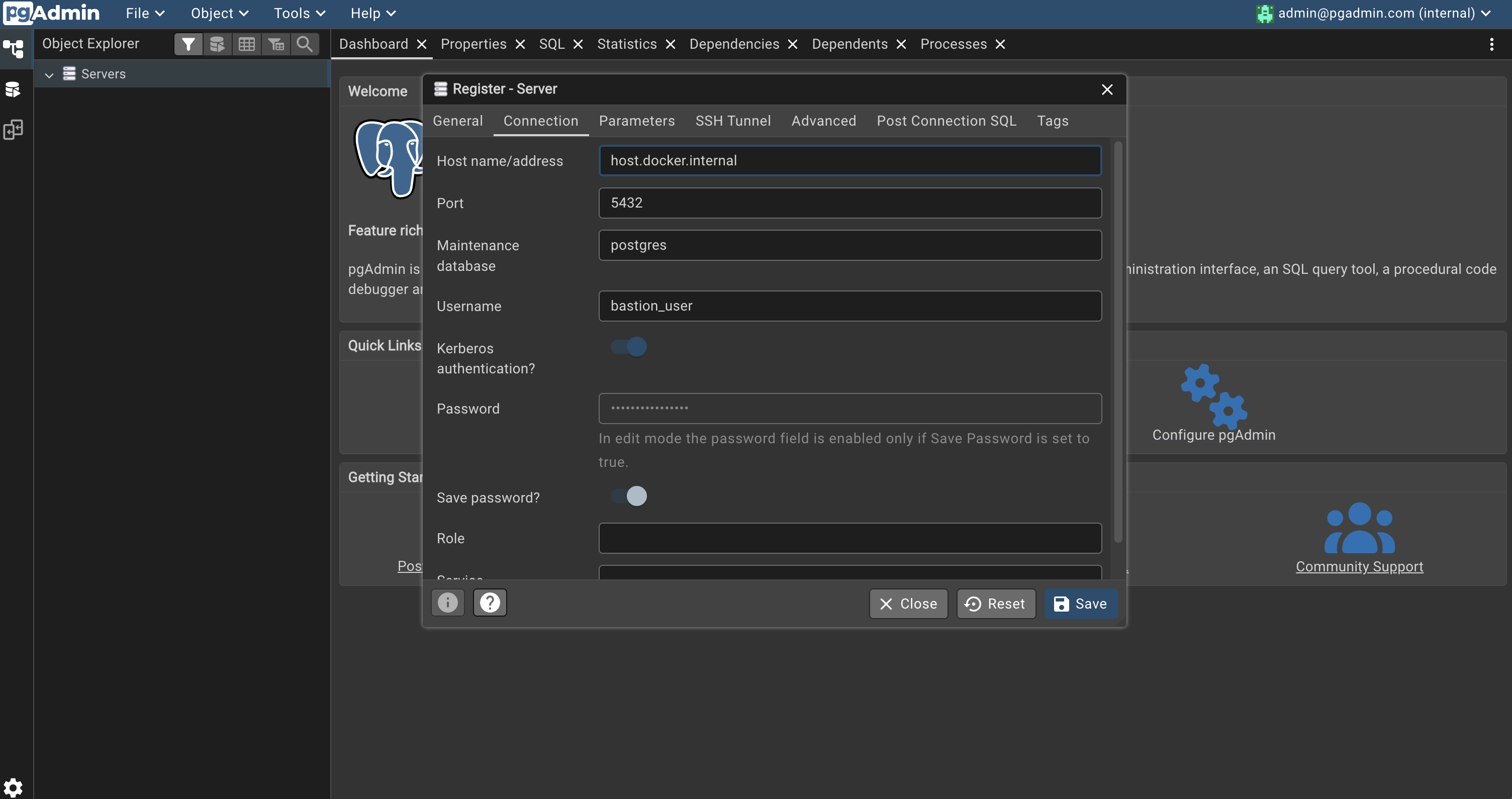
host.docker.internal, which resolves to the local machine, not AWS. The session forwards the connection to RDS.pgAdmin has no awareness of AWS. From its perspective it is connecting to a Postgres server on the machine hosting the container, and the session forwards that connection to RDS.
Note that host.docker.internal reaching a port bound to 127.0.0.1 is Docker Desktop behaviour on Mac and Windows. On Linux it does not work the same way, because the tunnel only listens on localhost.
Click Save to establish the connection.
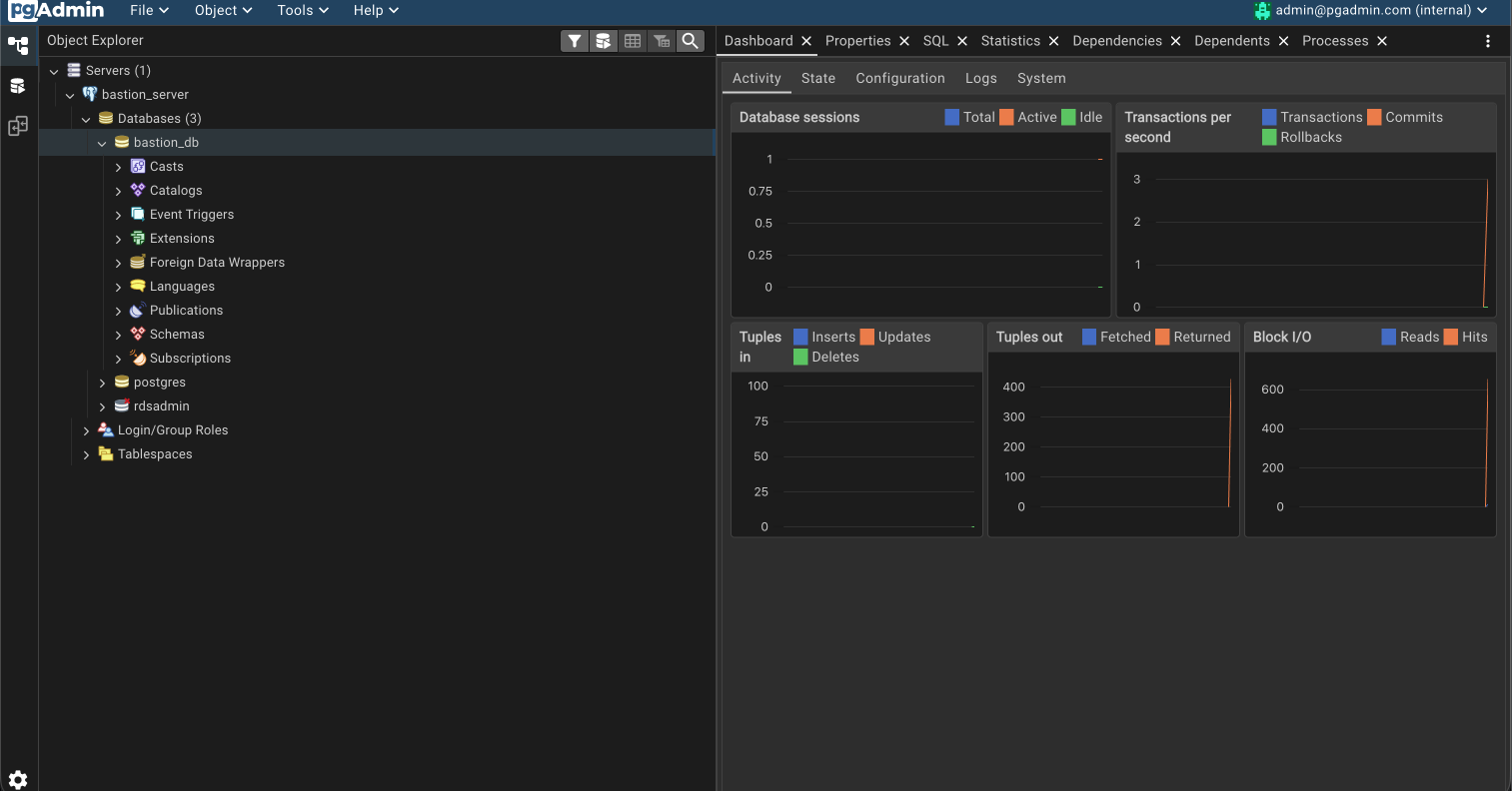
rdsadmin database in the tree indicates that this is a genuine RDS instance rather than a local server.Three databases appear: bastion_db, which Terraform created, plus postgres and rdsadmin. rdsadmin is managed by AWS and only exists on RDS instances, so its presence confirms the session is reaching the RDS instance. The dashboard graphs reflect the new connection as database activity.
8. Cleaning up
terraform destroySources
Need Help With Your Infrastructure?
Locking down database access is a common first step in modernising cloud infrastructure. Sunbird Analytics works with teams on AWS security, networking, and cost optimisation.